21 September 2026
Why can’t you print just any image downloaded from the internet onto a T-shirt?
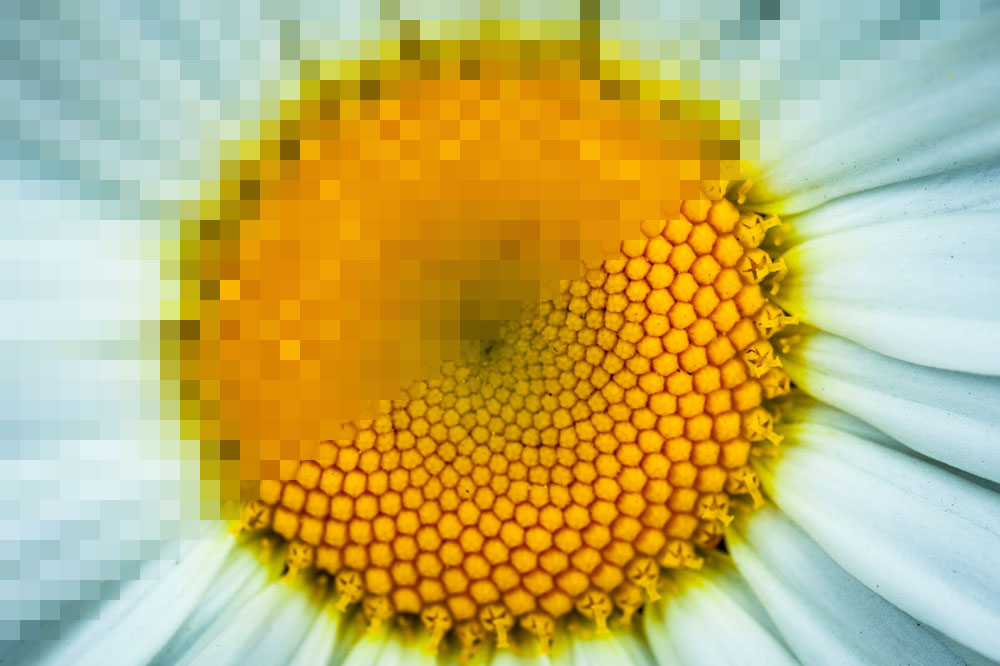
It often happens that a customer sends us an image they want printed on an A3 or A4 T-shirt and is disappointed when we tell them that the image isn’t suitable for printing because it’s either too small or of poor quality. So what’s wrong with this image – it looks fine on the screen, doesn’t it? And can’t it be enlarged?
Let’s take a closer look at the image first. If you zoom in on a digital image, you can see that it is made up of tiny coloured squares – known as pixels – each of which has its own brightness and colour tone.
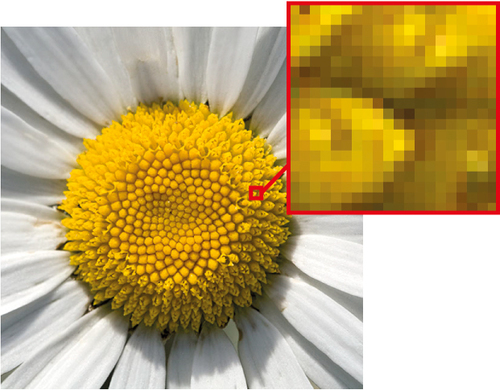
The size of an image depends on the number of pixels – the more pixels there are, the larger the image. But that’s not all – when it comes to printing, the image resolution is also important. Resolution indicates how many pixels fit into one inch – the unit of measurement for resolution is ppi (pixels per inch). Images intended for display on screens usually have a resolution of 72 ppi, meaning that there are 72 pixels within one inch.
For example, the dimensions of an A4-sized image (210 x 297 mm) in pixels would, in this case, be 595 x 842 pixels (595:72 = 8.26 inches or 209.9 mm). However, for printing, a resolution of 300 ppi is usually required, meaning that 300 pixels must fit within one inch. If we now take the very same pixels that made up the 210 x 297 mm image in the previous example and reduce them so that 300 fit per inch instead of 72, then the image will only measure 50 x 71 mm – slightly larger than a matchbox.
‘But just make the picture bigger, then,’ you say. Yes, it’s true that, to a certain extent, you can enlarge a picture without the quality deteriorating noticeably, but not indefinitely. Imagine you have a jigsaw puzzle measuring 1 x 1 m. One fine day, you realise you no longer want such a large one and throw some of the pieces away, leaving you with a jigsaw measuring 0.5 x 0.5 metres.
The remaining pieces still fit together, and the picture is perfectly recognisable, so it’s not really a problem. But then you change your mind and realise you’d actually like the one-metre version back. Unfortunately, half the pieces have already been thrown away. You have no choice but to draw new ones to replace the missing ones. As you no longer know exactly what was on the missing pieces, you try to guess based on the remaining pieces next to them.
Now you have a metre-long jigsaw puzzle again, but it’s still not quite the same – some of the details are lost for good. It’s exactly the same story with the pixels in an image as it is with the pieces of a jigsaw puzzle. When you enlarge an image, the image-editing programme inserts new pixels between the existing ones, trying to work out the colour and brightness of the new pixels based on the neighbouring ones. However, the details that were lost when the image was reduced are gone for good. Consequently, enlarging an image reduces its quality – the image becomes blurrier and less detailed.
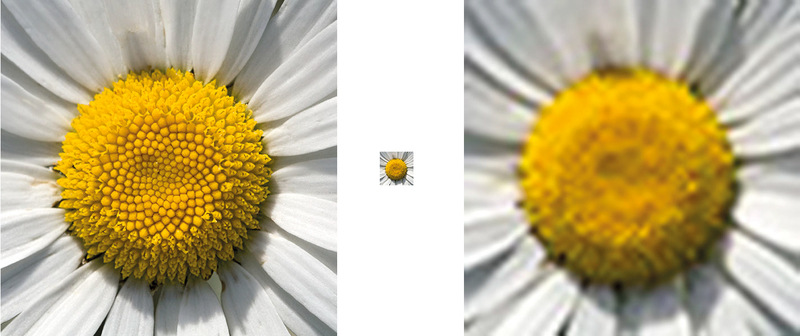
An image measuring 600 x 600 pixels, reduced by a factor of 10 and then enlarged back to its original size.
The extent to which an image can be enlarged depends on its size and quality. Image quality is another factor that often poses a problem when printing. When browsing websites, you sometimes find that you have to wait a while before a large image finishes loading and opens. So what can be done to avoid this – whilst still wanting an eye-catching, full-screen image on your website? It is possible to significantly reduce the size of a JPG file (in kilobytes) whilst keeping the image dimensions – that is, the number of pixels – the same. This reduction in size must come at a cost, and that cost is image quality. When a file is saved as a JPG, some of the information is compressed – adjacent pixels of similar colour and brightness are grouped into larger blocks.
Compression results in a loss of image detail, and the boundaries between areas of different colours and brightness become more blurred. If the image size is reduced moderately, the human eye will not notice it; however, if the size is reduced significantly, the image becomes pixelated. It is not advisable to save a JPG file repeatedly – by opening it in an image editing programme and saving it again – because each time it is saved, the pixels are compressed anew, and the image quality deteriorates with each save.
Images of the same dimensions, with file sizes of 150 kb and 57 kb.
If you were to try to enlarge an image that has already been compressed to a very small file size, you can expect that nothing good will come of it. As the print result depends largely on the file, you should opt for files that are as large as possible and of good quality. So where can you get them? The best option is image banks (Adobe Stock Images, Shutterstock, etc.), where you can purchase digital photos of the right size and decent quality. However, if you wish to take the photos yourself, you should set the camera to the maximum image size and use the uncropped image straight from the camera. If possible, save the image in TIFF format, as this does not compromise image quality when the file is saved multiple times.
If the files are not photographs (logos, graphics) and it is important to achieve specific colour tones in the print, then vector graphics files (.ai, .cdr, .pdf, .eps), as these do not suffer from any of the problems described above – they can be enlarged or reduced indefinitely without any loss of quality.